
Quick answer
Google Docs cannot open a .tex file and has no LaTeX import button. Two paths work instead: type LaTeX-style commands in the built-in equation editor, which reads single commands but no braces and no environments, or wrap your code in double dollar signs and render it with the Auto-LaTeX Equations add-on. The first keeps the equation editable, the second turns it into an image.
- What Google Docs does and does not do with LaTeX
- Method 1: LaTeX shortcuts in the equation editor
- Method 2: render LaTeX code with the Auto-LaTeX add-on
- Which method to use
- Common errors and how to fix them
- What happens when you export the document
- More Guides
- Frequently asked questions
You have equations written in LaTeX and a document that has to live in Google Docs. The obvious move, uploading the .tex file, does nothing useful: Drive treats it as plain text.
There is no official converter. A thread in Google’s own help forum says it plainly: there is no built-in parser that turns pasted LaTeX into a native, editable equation.
What does exist are two working routes, both tested here with screenshots. One needs nothing installed. The other handles a document full of equations in a single click.
What Google Docs does and does not do with LaTeX
The equation editor in Google Docs understands a subset of LaTeX commands. Type \alpha and you get α. Type \frac and a fraction appears, ready to fill in. That covers homework, lab reports and short papers.
What it does not do:
- It does not open or import
.texfiles. - It does not read LaTeX blocks with braces, like
\sqrt{2}. - It has no environments: no
align, nomatrix, no\begin{...}. - It has no bibliography, no cross references, no numbering.
For a document that already holds dozens of equations in LaTeX, an add-on fills the gap. Auto-LaTeX Equations scans everything wrapped in $$ ... $$ and replaces it with a rendered picture of the equation.
If your problem is the opposite one, bringing a finished file into Google, see how to convert DOCX to Google Docs.
Method 1: LaTeX shortcuts in the equation editor
Nothing to install. Best for a handful of equations inside normal text.
Open the equation editor
With the document open, click Insert and then Equation. Google’s own help page still describes the old path, “Insert > Symbols > Equation”, but in the current interface Equation is its own menu item.
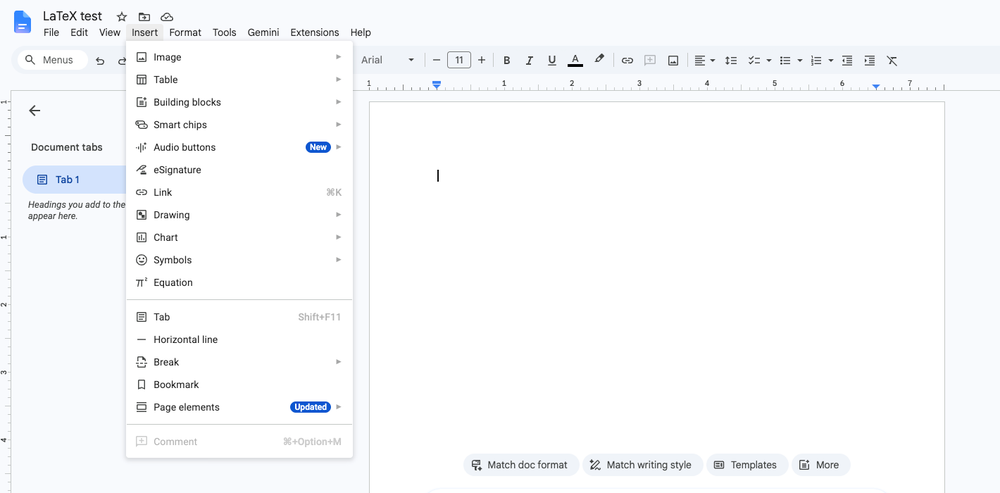
A new bar appears under the toolbar, labeled New equation, with five symbol menus: Greek letters, operations, relations, math operators and arrows. Your cursor is now inside an equation box in the text.
Type the command, then press space
The space bar is what triggers the conversion. These all work:
\alphaplus space gives α\piplus space gives π\sqrtplus space opens a square root\fracplus space opens a fraction with two fields\pmplus space gives ±^moves into a superscript,_into a subscript
To leave a field and move to the next one, press the right arrow key. That is enough to build a full formula without touching the mouse. The quadratic formula below came from this exact sequence: x = \frac then -b \pm then \sqrt then b^2, right arrow, -4ac, right arrow twice, 2a.
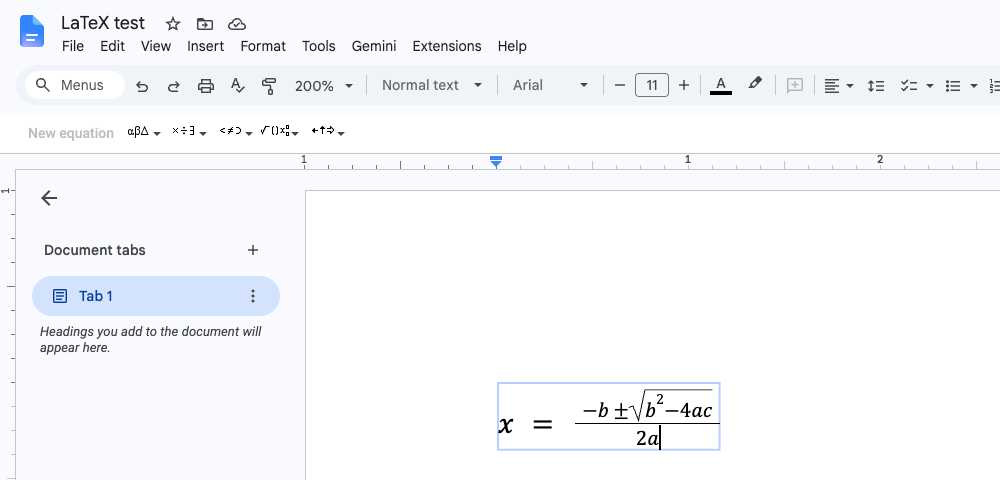
Two limits are worth knowing before you start. First, the editor reads commands, not blocks: paste \sqrt{b^2-4ac} with braces and Docs shows the raw text, because it expects \sqrt followed by a space. Second, the command list is short, so anything structural is out of reach.
The payoff is real, though. The result stays an object in the document, editable at any time, and it follows the font size of the paragraph.
Method 2: render LaTeX code with the Auto-LaTeX add-on
This is the route when the code is already written and you want the look of a compiled PDF.
Install the add-on
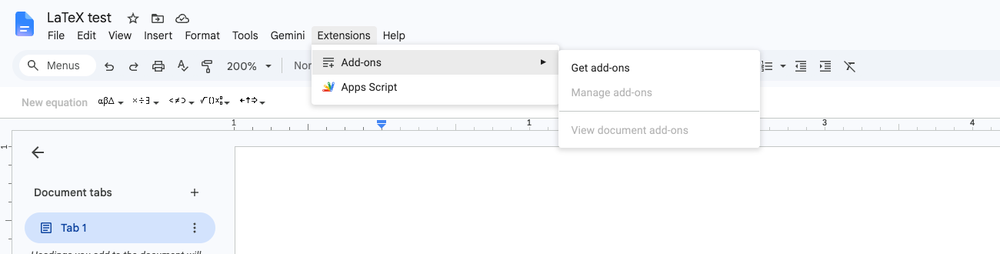
In the menu, click Extensions, then Add-ons, then Get add-ons.
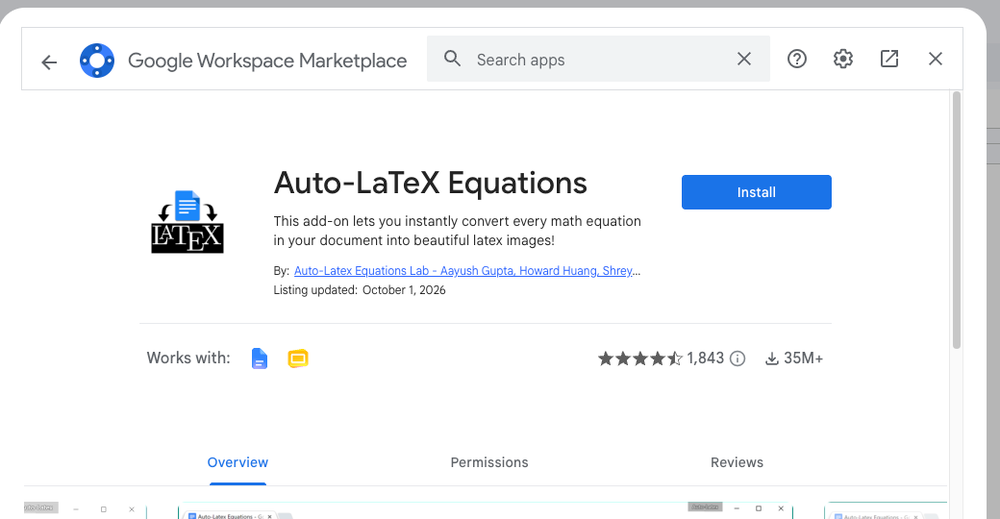
Search for “Auto-LaTeX Equations” and open its listing. It is the most used tool in this category: 4.5 stars, 1,843 reviews, more than 35 million installs, last updated on October 1, 2026. Click Install.
Pay attention to the permission screen. It lists several checkboxes, and one of them can arrive unchecked. Google still completes the install if you confirm it that way, so nothing looks wrong at first. The failure only shows up later, when you ask the add-on to render. Check every box before clicking Continue. That single detail causes the most common error with this tool, covered further down.
Wrap each equation in double dollar signs
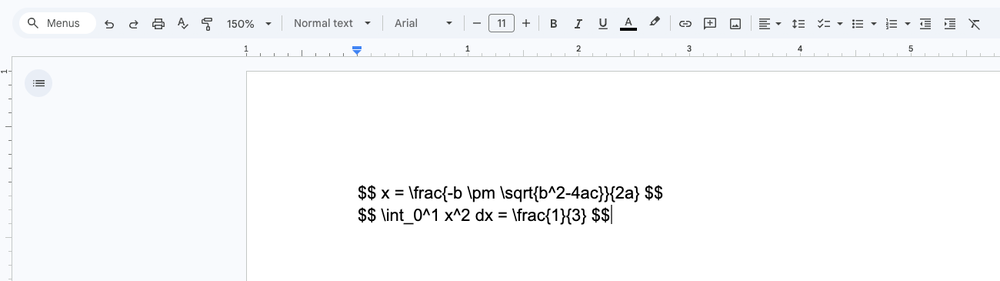
Write the equations in the document, each one between $$ and $$. The text stays raw on screen, which is exactly how it should look at this stage.
Start the add-on
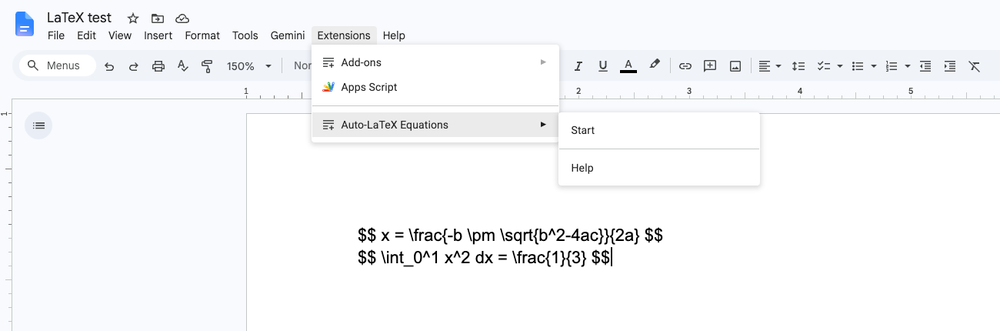
Go to Extensions, then Auto-LaTeX Equations, then Start.
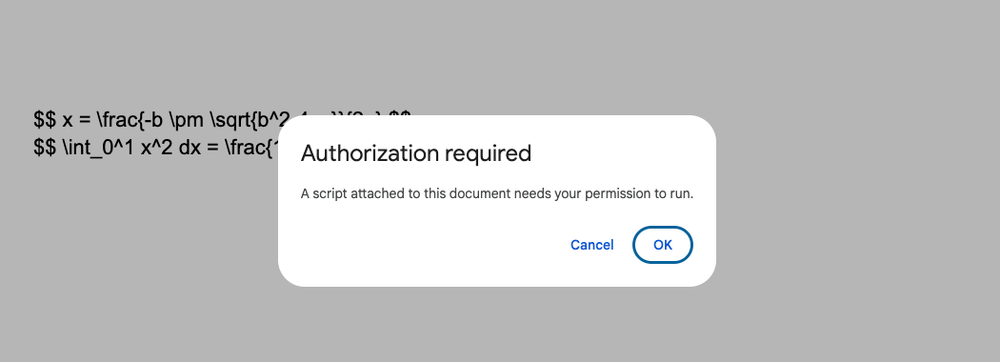
The first run shows an Authorization required box. Click OK and finish the authorization in the window that opens.
Render the equations
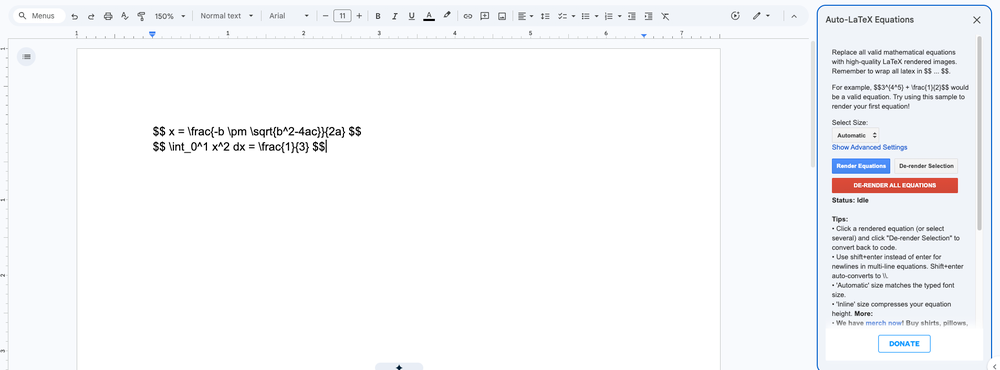
The add-on panel opens on the right. Pick a size under Select Size: Automatic matches the font size of your text, Inline compresses the height so the equation sits in a line of prose. Then click Render Equations.
A few seconds later the code becomes math, and the panel confirms the count. In the example, Status: 2 equations rendered.
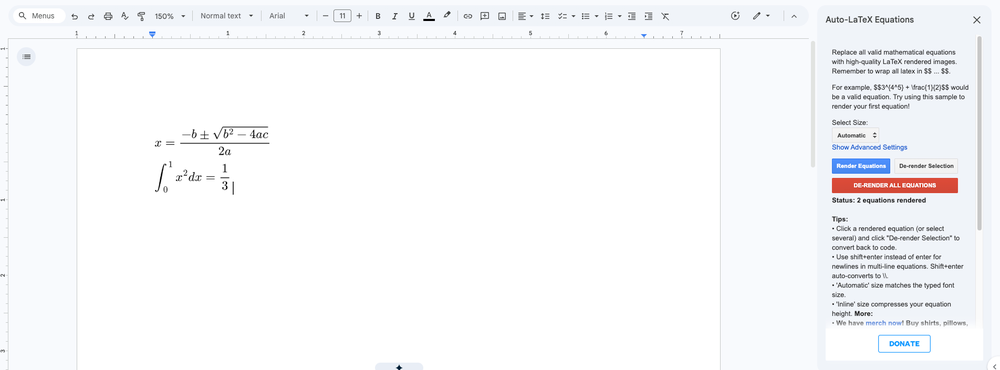
To undo, click a rendered equation and use De-render Selection, which brings the original code back. DE-RENDER ALL EQUATIONS does it for the whole document.
One honest caveat: the output is an image. It looks like real LaTeX, but it is not text. You cannot click it to fix an exponent; you have to go back to the code first.
Which method to use
| Situation | Method |
|---|---|
| Two or three equations in ordinary text | Built-in editor |
| LaTeX code already written, many equations | Auto-LaTeX add-on |
| You will edit the equation later inside Docs | Built-in editor |
| You need the exact look of a LaTeX PDF | Auto-LaTeX add-on |
| The document will be read with a screen reader | Built-in editor |
| Matrices, align environments, bibliography | Neither: stay in a LaTeX editor and export a PDF |
Common errors and how to fix them
“Sorry, the script has conflicting authorizations. Try signing out of other active Gsuite accounts.” The message blames extra Google accounts, and that is misleading. The same failure happens on a browser profile signed into a single account. The real cause is usually a permission checkbox left unchecked during install. The fix that works: remove the add-on under Extensions > Add-ons > Manage add-ons, install it again, and check every box on the permission screen. After that, Render Equations responds normally. If it still fails, then sign out of the other Google accounts and retry.
The command shows as plain text instead of a symbol. In the built-in editor, you forgot the space. Type \sqrt and press space, not a brace.
The add-on is missing from the Extensions menu. Reload the document page. Docs only lists a freshly installed add-on after a reload.
The rendered equation came out huge or tiny. Switch Select Size to Automatic and render again; that mode copies the font size of the paragraph.
Nothing happens when you click Render Equations. Check that each equation has a pair of dollar signs at each end. A single dollar sign is not recognized.
What happens when you export the document
Download as PDF and both methods survive: the native equation is drawn, and the add-on image is embedded.
Download as .docx and the difference shows. The native equation becomes a Word equation, still editable. The add-on output stays an image, so whoever receives the file cannot correct anything without the source code. If Word is the destination, prefer the built-in editor.
The same rule of thumb covers anything that arrives from outside Google: text converted from another format keeps its structure, while a picture of a formula stays a picture. Weigh that before you pick a method.
More Guides
Working on documents and decks in Google usually means pulling files in from somewhere else. Three guides cover the paths people hit most: convert DOCX to Google Docs when the text comes from Word, add audio to Google Slides when a deck needs narration, and convert Canva to Google Slides when the design was built elsewhere.
Frequently Asked Questions
No. Drive shows the .tex file as plain text. There is no official conversion from LaTeX source into a Google document.
Yes. The add-on is free. Its panel carries a donation button and a link to the author’s merch, and no feature is locked behind payment.
Only after turning it back into code. Click the equation and use De-render Selection in the add-on panel.
No. The trigger is the space after the command. \frac plus space opens the fraction, and you fill the fields using the right arrow key.
The equation editor and add-ons run in the browser version, on a computer. The mobile app displays what is already there, but it has no add-on panel.
The built-in editor. The add-on output is an image, and without alt text it goes unnoticed.